Build noteFeb 10, 2025
Adjust Prices in WooCommerce
Introduction
If you want to quickly respond to market changes or create seasonal offers in your online shop, a price change is often necessary. In this article, we will show you step by step how to adjust the price of a WooCommerce product, what to watch out for, and what pitfalls to avoid.
Step-by-Step to the New Price
Open WordPress Dashboard
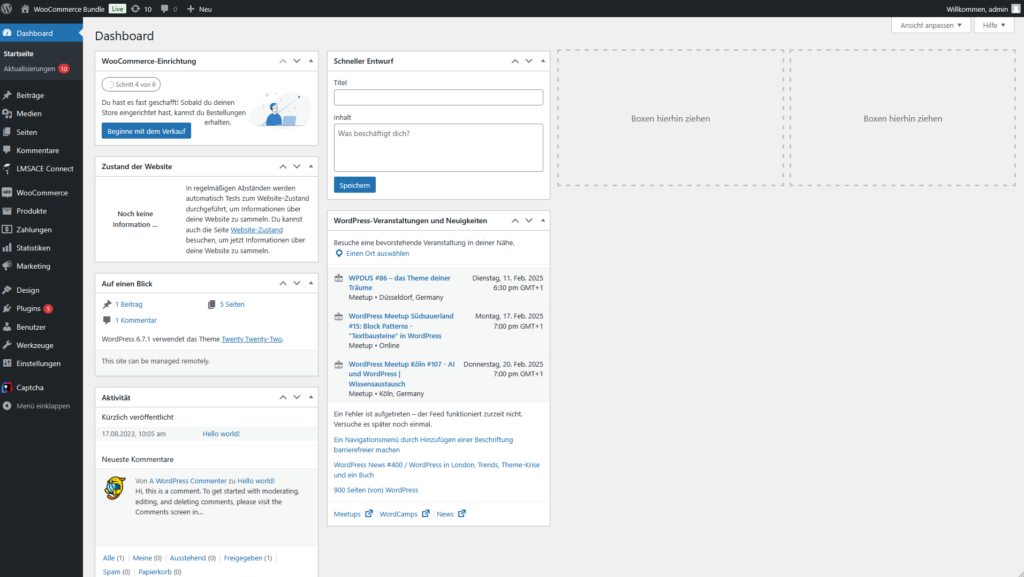
Log in at your-domain.com/wp-admin with your user account. Make sure you have the appropriate user rights (Shop Manager or Administrator).
Manage Products
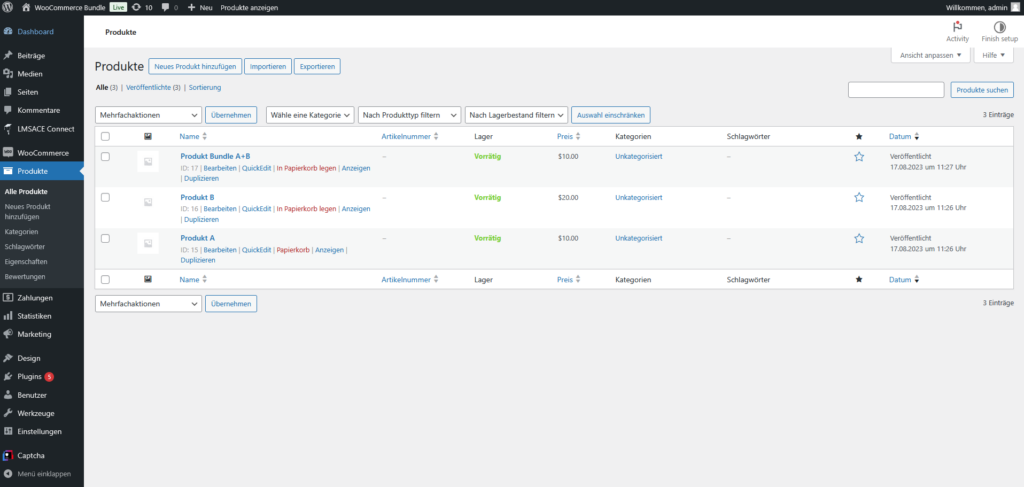
Select "Products" from the left menu. You will get an overview of all existing products. Use the search or filter function to quickly find the desired product.
Edit Product
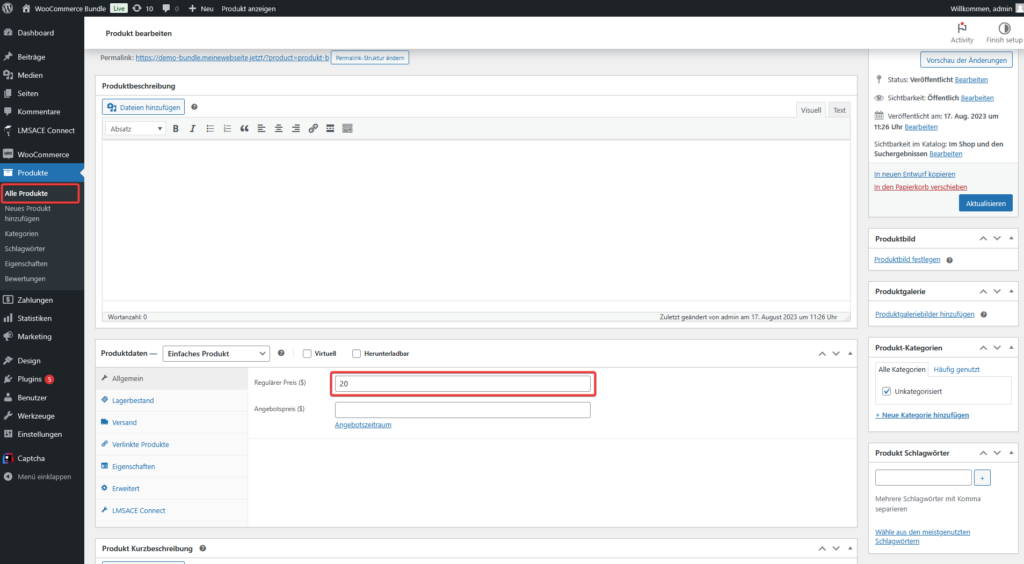
Click on the product name or on "Edit" to enter the editing view. In the lower area, you will find the "Product Data" section, where you can make various settings for your product.
Change Price
Switch to the "General" tab. Here you can adjust the regular price.
Optional: If you want to start a limited-time promotion, you can also set a sale price and define a time period.
Variation Check: If you have a variable product, you need to change the price for each variant individually. Click on the "Variations" tab. There you can open each individual variant and adjust the price separately.
Save and Check
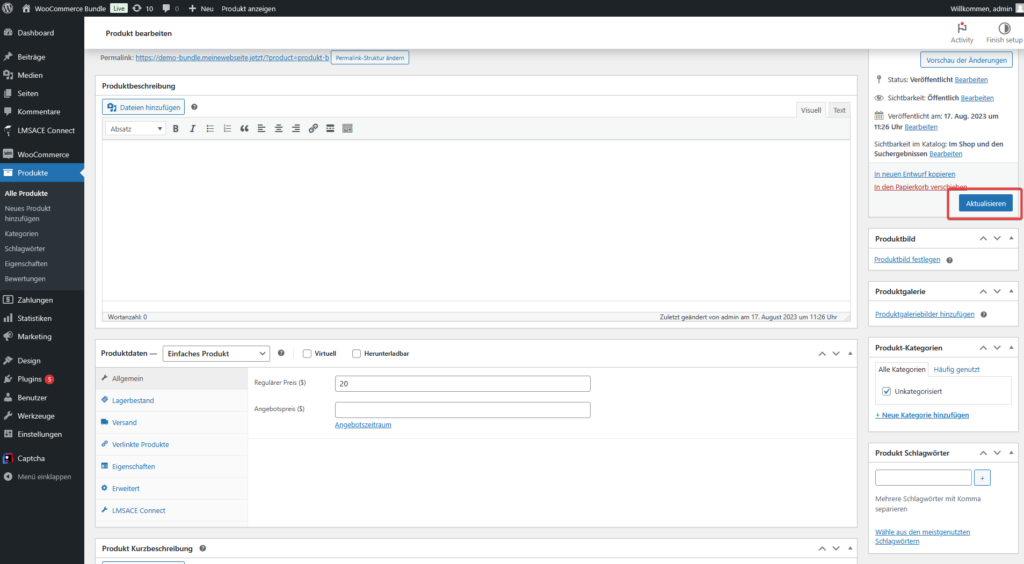
Save Changes:
Don't forget to click "Update" (or "Save") to make the change effective in the shop.
Test in the Frontend:
Open your product in the shop frontend and check if the new price is displayed correctly. Add the product to the cart and briefly go to checkout to ensure that the price is also correctly transferred there.
Common Pitfalls and Solutions
Caching Problem:
If the price change is not immediately visible in the frontend, clear your browser's cache or your caching plugin. This will load the current version of the page.
Overlooking Variation Products:
With products that have variations, it can easily happen that you only change the price of the main product and forget the prices of the variants. Therefore, always check all variants individually.
Tax Settings:
Make sure whether you are entering the price as gross or net and whether WooCommerce is configured accordingly. Incorrect final prices can quickly occur if the settings do not match.
Conclusion
With just a few clicks, you can adjust the price of your products in WooCommerce—whether for special promotions, seasonal offers, or a long-term price adjustment. Pay attention to the correct user roles and tax settings during implementation. After saving, you should definitely conduct a test in the frontend to ensure that your customers see the correct price. Good luck adjusting your WooCommerce prices!