WordPress BasicsJul 02, 2021
How to Embed Google Forms in WordPress
In this tutorial, we will show you how to embed Google Forms on your WordPress website in just three simple steps.
Step 1: Create Your Google Form
First, log in to your Google account. Once you are logged in, you can access Google Forms by clicking on the purple icon in the Google Apps menu:

Now open the Google Forms interface.
You now have the option to start with a blank page or use one of Google's templates.
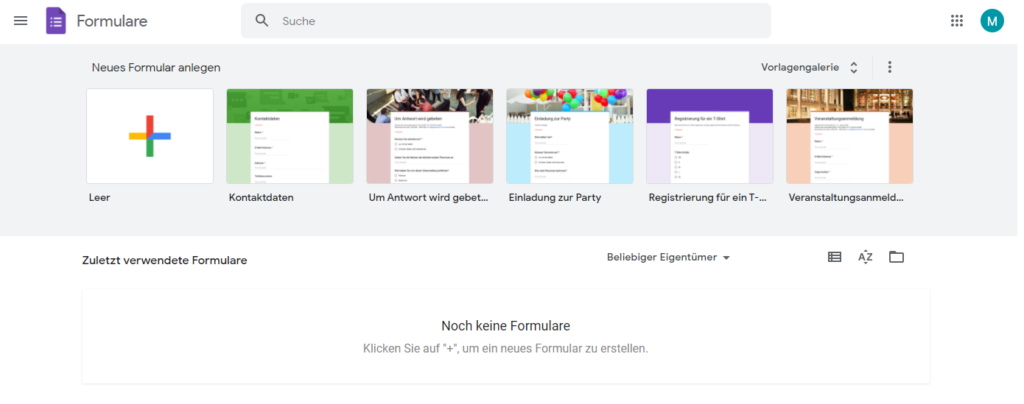
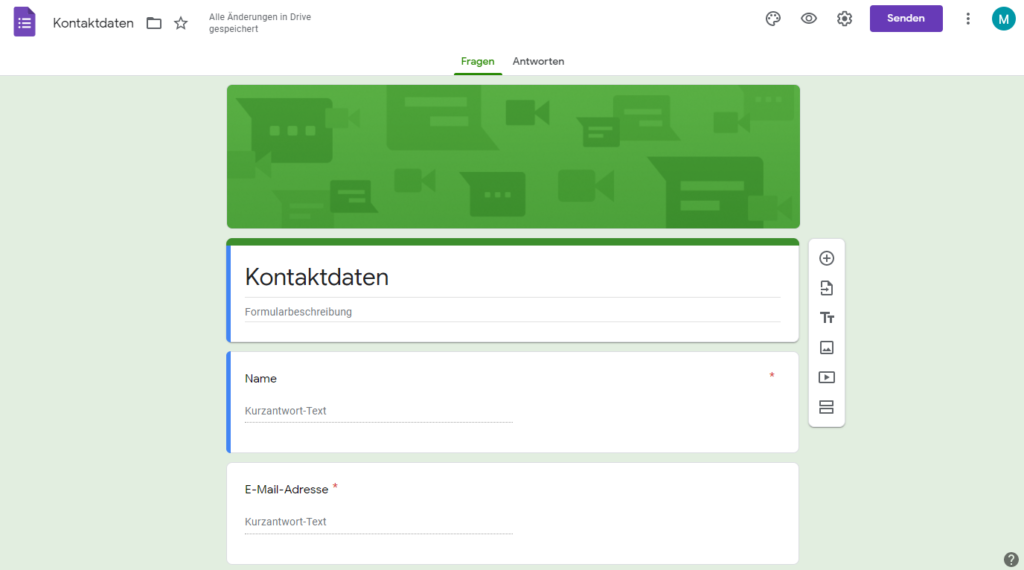
Now create your form. Using the toolbar on the right side, you can add new questions and elements. You can customize the design of the Google Form using the color palette icon.
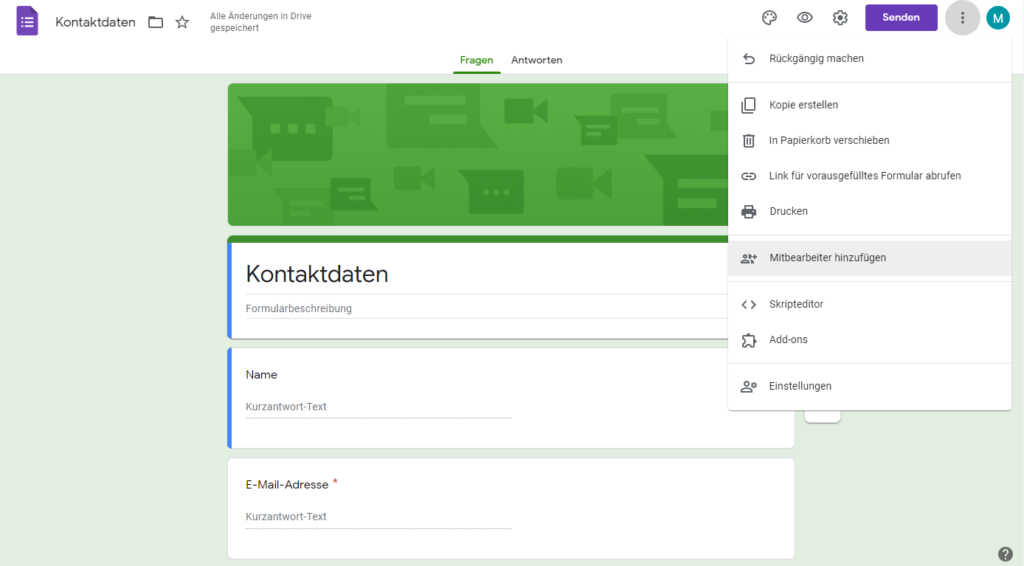
As with all Google Apps (Google Docs, Google Sheets), you can invite your teammates to collaborate on creating your Google Form. You can find this option by clicking on the three dots next to your profile picture.
With these tools, you should be able to create your form as you wish. Once you are done editing, you can embed the form on your WordPress website.
Step 2: Get the Embed Code for Your Google Form.
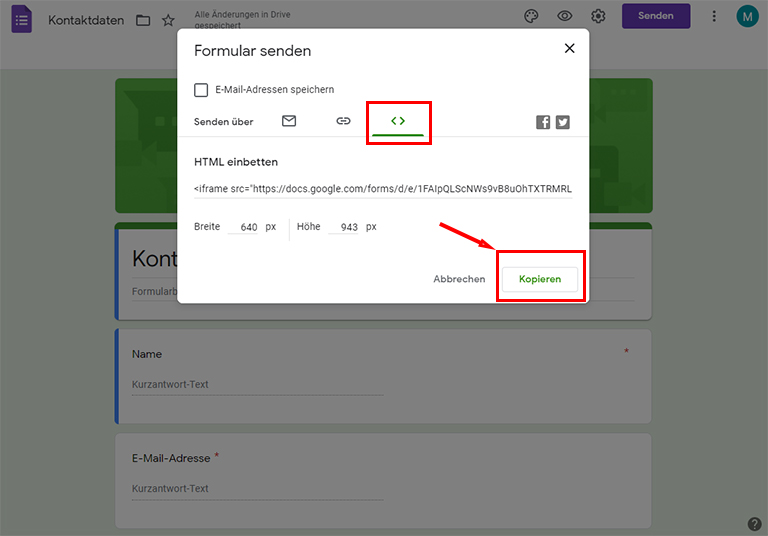
To get the embed code for your Google Form, click on the purple Send button. You will have five options to share your form.
- Share via Email
- Share via Link
- Share via HTML
- Share on Twitter
- Share on Facebook
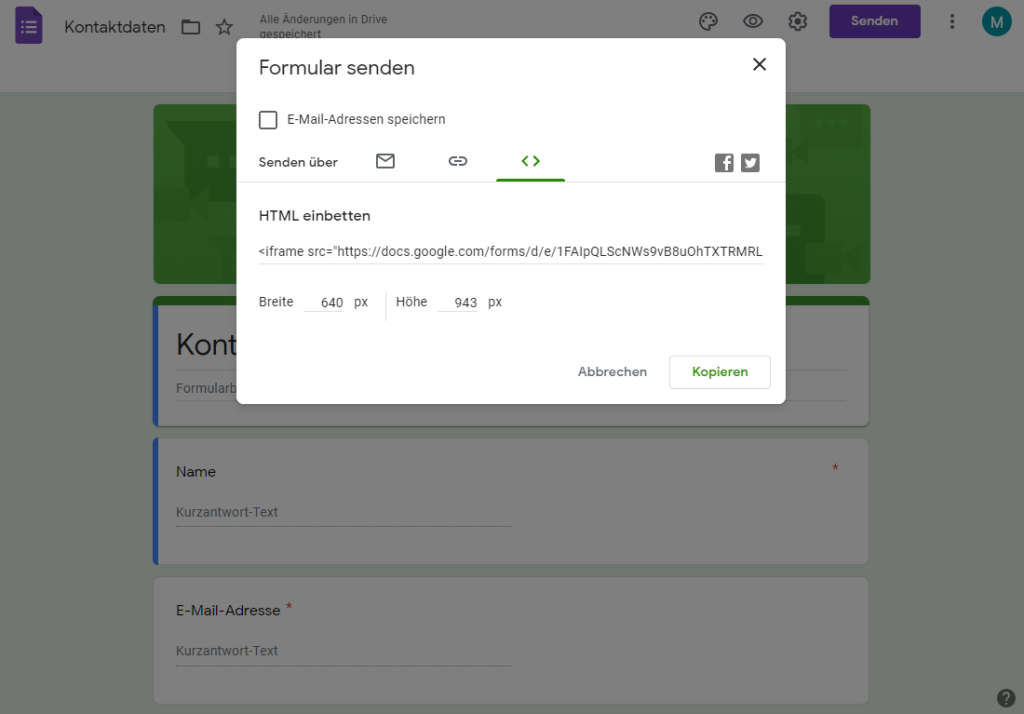
To embed the form on your WordPress website, we need the HTML option. Select the < > tab. Under Embed HTML, you will find the required HTML code. Additionally, you can specify the width and height of the form.
Now adjust the size to your preferences and then click the copy button in the bottom right corner of the window.
Next, switch to the dashboard of your WordPress website.
Step 3: Insert the Code into Your WordPress Website.
Now we can embed the form into your WordPress website using the embed code. Open the post or page where you want to embed the form. If you are using the Gutenberg editor, you should add a custom HTML block:
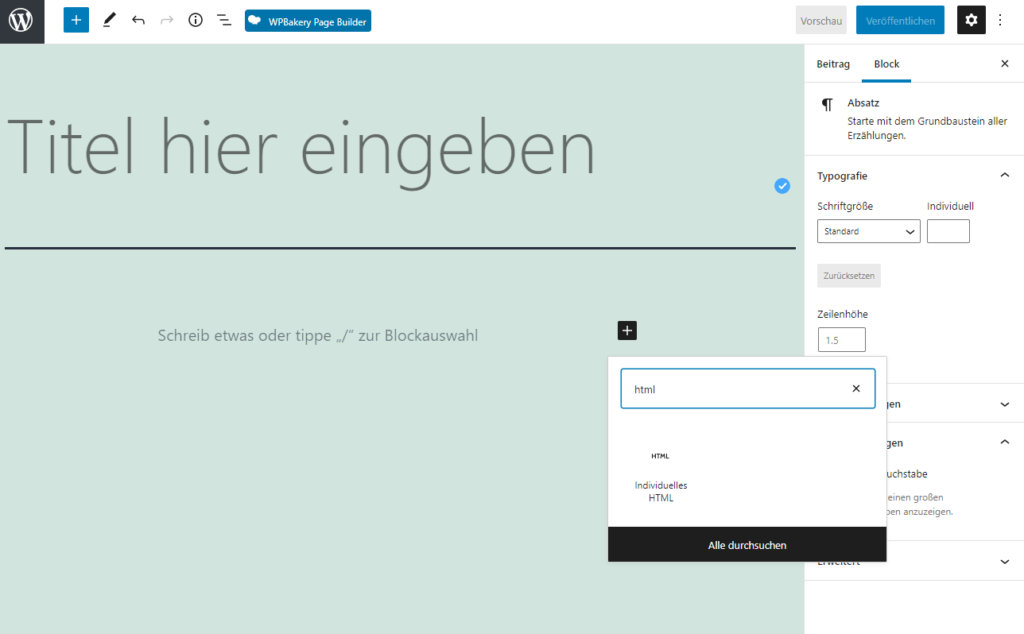
Then paste the embed code you obtained in Step 2.
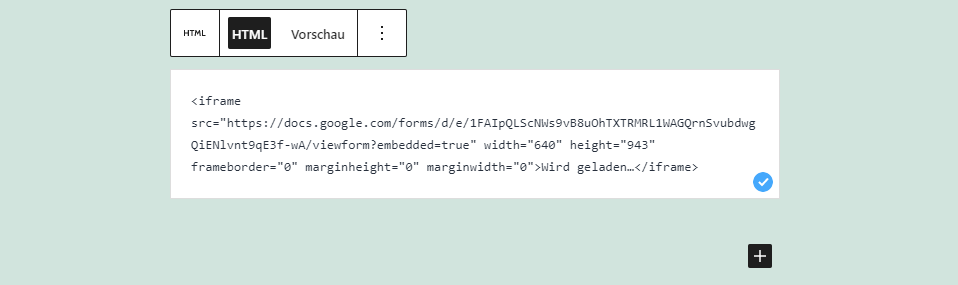
Using the Preview tab in the toolbar of the custom HTML block, you can view your Google Form as it will appear on the website.
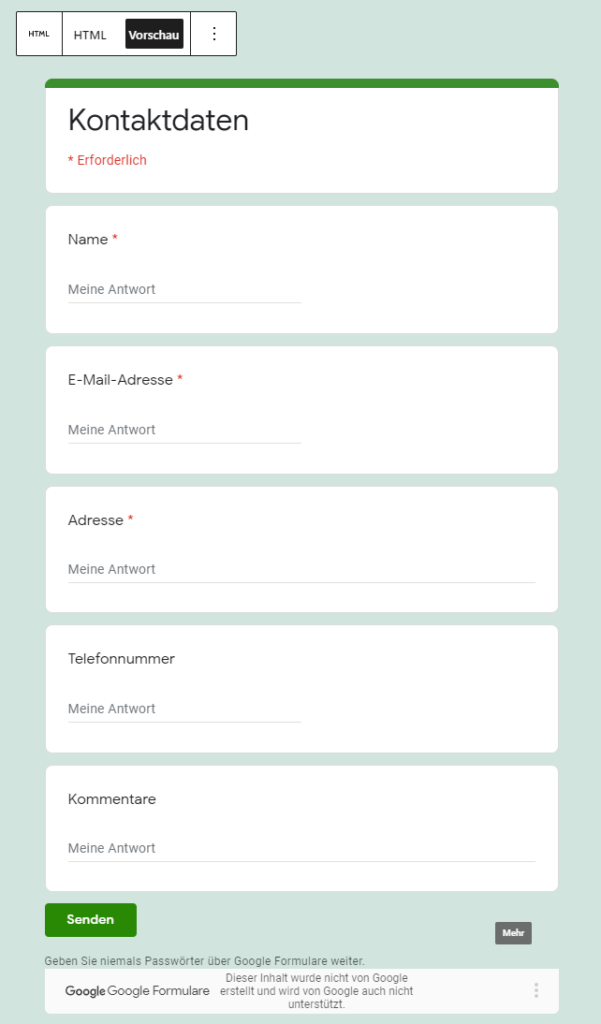
Save your page or post. The form has now been embedded on your website.
If you are using the classic editor instead, you first need to switch to the Text view.
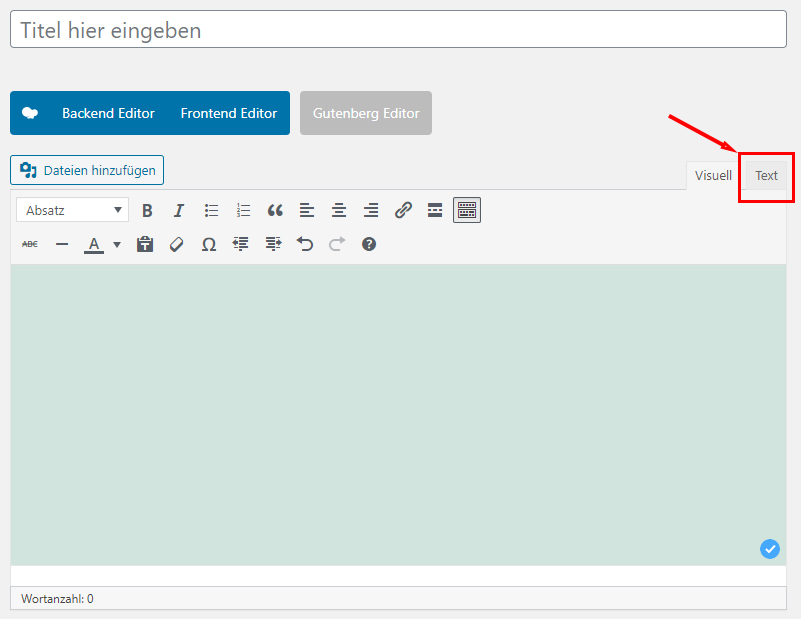
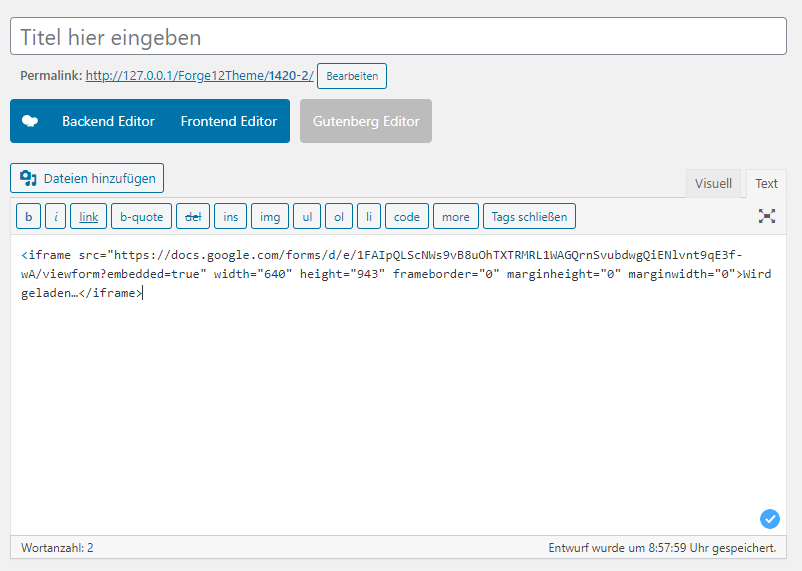
Then you can paste your Google Forms embed code where you want the form to appear.
Once you switch back to the visual editor, you should see your form.
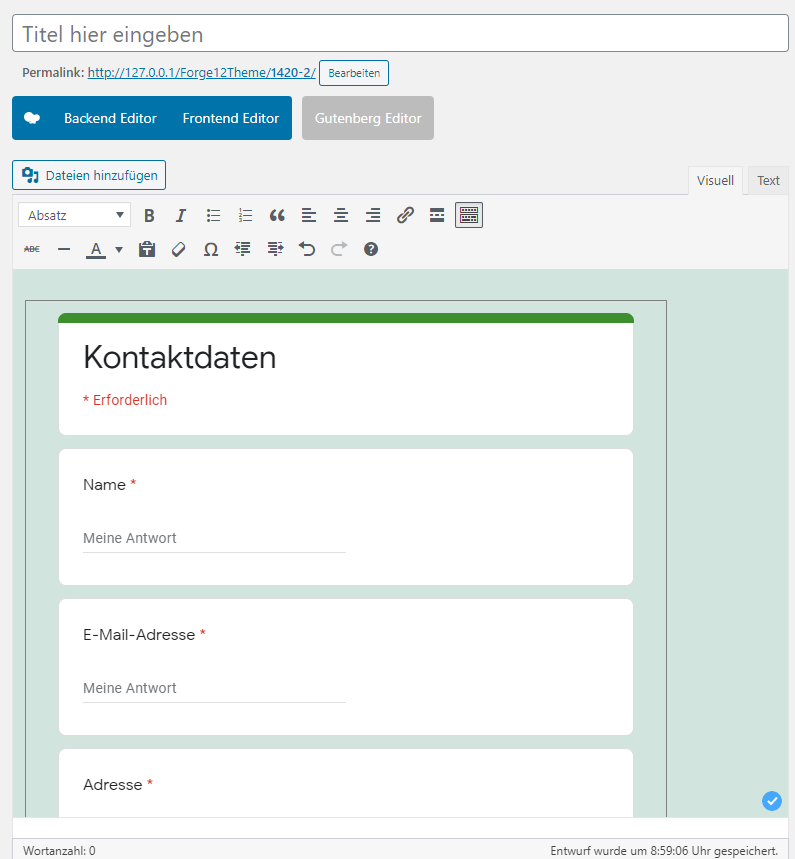
You can also preview your page to see how it will look live later.
That's it. That's all you needed to do to embed your Google Form in your WordPress page or post.
Summary
Forms help you collect data and feedback from your visitors. Surveys can also be easily created with Google Forms and embedded on your WordPress website.
With just three simple steps, you can embed Google Forms on your WordPress website:
- Create a Google Form
- Copy the embed code of your Google Form
- Add the embed code to your WordPress page.
If you have any questions about embedding a Google Form on your WordPress website, let us know in the comments section.