WordPress Errors & MaintenanceJun 09, 2021
How to Enable Debug Mode in WordPress
WordPress has a built-in debug mode that allows you to save errors, warnings, and notices in a separate log file.
How do I enable debug mode?
You can enable WordPress debug mode directly in the wp-config.php file. This file is located in the root directory of your WordPress installation.
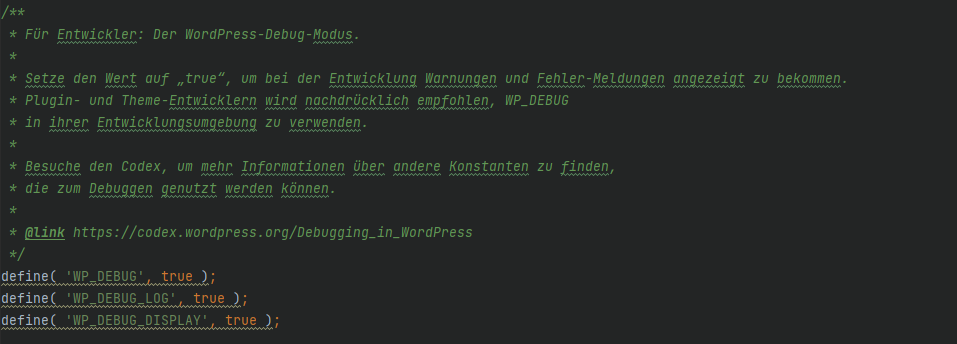
define('WP_DEBUG',true);Now the debug mode is activated, and error messages will be saved in the log file.
WP_DEBUG_LOG
With WP_DEBUG_LOG, you can specify whether the messages should be saved in the log file or not.
define('WP_DEBUG_LOG', true); // true | falseYou can also use the parameter to save your log file in a different location:
define('WP_DEBUG_LOG','tmp/my-custom-error.log');However, for this to work, you must have activated debug mode via WP_DEBUG.
WP_DEBUG_DISPLAY
You can also display error messages in the browser. For this, you use the parameter WP_DEBUG_DISPLAY.
define('WP_DEBUG_DISPLAY', true); // true | falseWarning: If you use WP_DEBUG_DISPLAY, visitors to your site can also see the error messages.
Note: If you are using a cache like WP Rocket, autoptimize, or similar, you may need to clear it first to see the error messages.
WP_DEBUG_DISPLAY enables (true) or disables (false) the output of error messages directly in the browser.
Where can I find the log file in WordPress?
You can find the WordPress log file at:
wp-content/debug.log
However, it is also possible that the storage location has been changed. You can check this in the wp-config.php file.
Check if an entry for WP_DEBUG_LOG has been set. The new path should also be specified there.
How can I change the storage location for the log file?
You can change the storage location for the log file at any time in the wp-config.php file. The wp-config.php file is located in the root directory of your WordPress installation.
Add the following (if this entry is not already present):
define('WP_DEBUG_LOG','/tmp/my-custom-log.log');From now on, the new log file should be used.
Note: For this to work, you must of course activate debug mode.
How to analyze the WordPress log file
If an error has occurred on your site and you check the log file, you will probably not understand anything at first.
First of all, it is very important to find out when the error occurred. All entries are timestamped. This way, you can already exclude a number of entries.
Next, we need to distinguish between:
- PHP Warning
- PHP Notice
- PHP Error / PHP Fatal Error / PHP Parse error
To find the error, we can ignore all PHP Warning and PHP Notice. The Error messages are particularly interesting.
If you have found an error that matches the timestamp of the problem, we have already found the culprit.
But what now? Along with the error, you will also find the file that caused the error in the log file. It might look something like this:
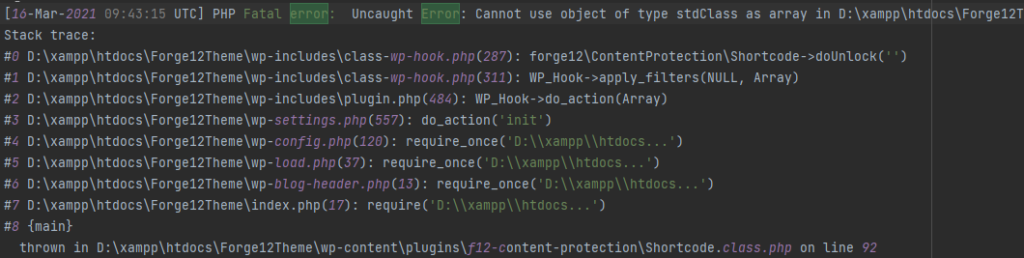
Both at the beginning and at the end of the error message, it states where this error message was thrown (Thrown). In our example, the file Shortcode.class.php in the plugin f12-content-protection causes the error.
Now you can contact the plugin author, deactivate the plugin by simply renaming the folder, or fix the error yourself.
Whatever you do, you should definitely create a backup of your website and your database.